How to Enroll in HSHS Text Notifications
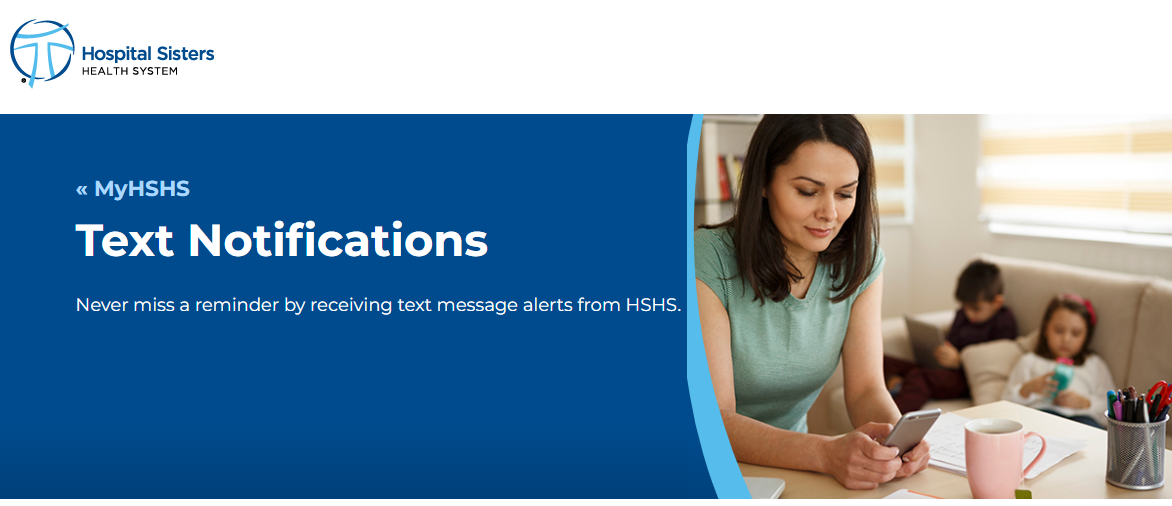
Never miss a reminder by receiving text message alerts from HSHS. Text START to 52186 to receive important updates and reminders. You can receive text notifications on;
- Appointments,
- MyHSHS and MyPrairie accounts,
- Prescription refills,
- Payments due
- and more.
How to Receive Text Messages from HSHS and/or Prairie Heart Cardiovascular
Text START to 52186 to begin or continue receiving text messages from HSHS. You can also control your communication preferences from your MyHSHS or MyPrairie account, including your opt-in status and desired updates.
If I opt in to text alerts by texting “Start” to 52186, will I also receive text alerts for children or proxy accounts I have access to through my MyHSHS account?
You will receive text alerts for those accounts if your mobile number is listed in the mobile field in those account settings. You can view or update these settings by switching to the proxy account, then choosing Personal Information from the drop-down menu.
How to Opt Out of texts from HSHS and/or Prairie Heart Cardiovascular?
To opt out of text messages from HSHS, you can text STOP to 52186 at any time or change your status via communication preferences within your MyHSHS or MyPrairie account. You can also call 866-312-5023 for customer support regarding your MyHSHS or MyPrairie communication preferences.
How to enroll in text alerts from MyHSHS or MyPrairie
You can enable text messaging services by logging into your MyHSHS or MyPrairie account and clicking the “Enable” button on the informational banner.
How to update/verify communication preferences in MyHSHS or MyPrairie
1. Click on “Your Menu” on the top left and select “Communication Preferences” to verify that notifications from HSHS are toggled on for your preferred method(s) of contact. (Email, Text Phone, or Mail)
2. To review which notifications will be delivered via a specific method of contact, expand the communication concept type(s) grouped under the Details section of this screen.
For example: Appointments, Messages, Health and Billing are each their own communication preference. You can decide which method of contact is used for each communication you desire to receive.
3. With the communication type expanded, select Advanced Settings to review and update how you receive specific notifications within the grouped concept type. When finished, select Save changes.
For example, within the expanded Appointments section, you can choose to receive After Visit Summaries by either email, text, or both.
You can also choose to receive Appointment Confirmations via email, text, phone, or all three. If you only want to receive a certain communication via one communication method, make sure your preferred method is the only one toggled on.
How to un-enroll via Text
Text STOP to 52186.